mix space 前端+后端教程-4.19

ZXEB Lv5

mix space 前端+后端教程-4.19

其实我之前写过这个mix space的教程,但是那一版当时写的有些草率所以现在来重新写一下

建议看完一遍再开始操作

准备:

1.一个脑子

2.一台linux服务器,服务器内存不小于2g

我这里演示系统用的是ubuntu 24

正文:

环境配置:

1.先在服务器里安装好宝塔面板,然后配置好docker和nginx环境

2.刷新系统包缓存与安装常用/必备软件包

1
apt update && apt install git curl vim wget git-lfs -y

3.Ubuntu 安装依赖环境

1
sudo apt update && sudo apt install git curl vim wget git-lfs -y

4.安装依赖环境

依次运行下面两个指令

1
sudo su
1
npm install -g pnpm pm2

如果第二个指令下载过慢可以使用这个指令切换镜像源

1
npm config set registry http://mirrors.cloud.tencent.com/npm/

5.安装 NVM

1
curl https://raw.githubusercontent.com/creationix/nvm/master/install.sh | bash

6.运行 source ~/.profile 命令将环境变量重新加载到当前会话中。

1
source ~/.profile

7.列出 Node.JS 的可用版本。

1
nvm ls-remote

8.确定版本后,运行 nvm install version 命令下载并安装它。例如,安装 Node.JS 20.12.2 , 强烈推荐 V20.12.2 版本

1
# 安装nvm install 20.12.2# 检查版本node -v

9.安装 pnpm pm2

1
npm install -g pnpm pm2

10.安装 sharp

1
2
3
4
5
6
npm i -g sharppnpm add sharp

# 配置sharp环境变量
# vim ~/.bashrc
# 在底部加上
# export NEXT_SHARP_PATH=/root/node_modules/sharp

安装后端

先创建个文件夹

1
cd
1
mkdir -p mx-space/server
1
cd /root/mx-space/server

然后wget一下两个文件

1
wget https://fastly.jsdelivr.net/gh/mx-space/core@master/docker-compose.yml

下载好后去编辑docker compose 文件可使用finalshell宝塔在线文件管理编辑文件

environment 字段填入对应内容,使其符合 yaml 语法,保存即可。

如果你后续的主题是shiro记得把 image: innei/mx-server:latest改成image: innei/mx-server:10 因为shiro只适配到10.x版本

  • JWT 密钥:JWT_SECRET:需要填写长度不小于 16 个字符,不大于 32 个字符的字符串,用于加密用户的 JWT,务必保存好自己的密钥,不要泄露给他人。
  • 被允许的域名:ALLOWED_ORIGINS:需要填写被允许的域名,通常是前端的域名,如果允许多个域名访问,用英文逗号,分隔。
  • 是否开启加密:ENCRYPT_ENABLE:如果你确定要开启加密,则在配置文件中加入对应内容,开启加密后,你需要在下方填写加密密钥。
  • 加密密钥:ENCRYPT_KEY:如果你不知道这是什么,那么不建议开启此功能,具体内容可参考 Key 加密与安全性 关于 JWT 密钥可以使用 imgMD5 转换将你熟悉的文字加密作为 JWT 密钥 域名通常为前端域名:例如 www.glsaone.xyz , glsaone.xyz,localhost loacalhost 作为 前端Api 调用需填入

在相关内容填写完毕记得保存

随后拉取最新的镜像

1
sudo docker compose pull

启动容器

1
sudo docker compose up -d

这样就代表容器启动成功了

接下来打开宝塔面板,到网站里配置反向代理,先自行解析一个域名到服务器里
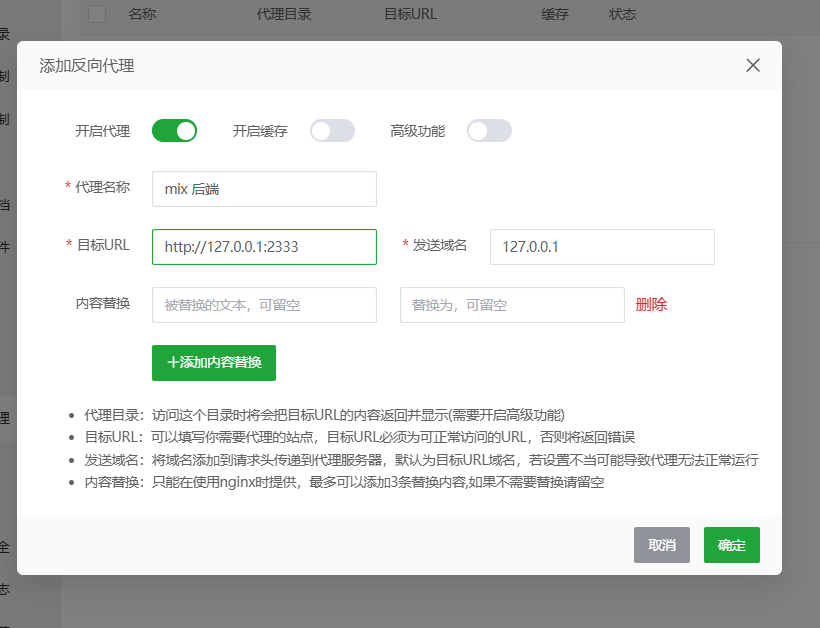
就像这样设置反向代理到2333端口,后续记得打开2333端口作为后端

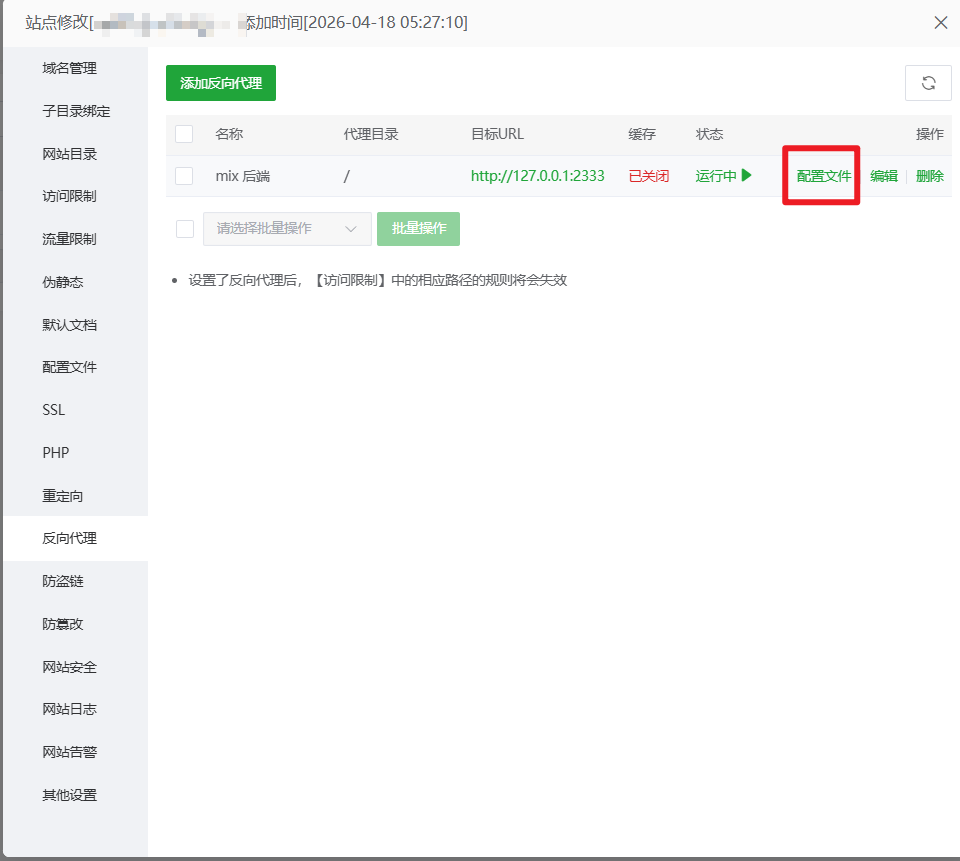
这里填写好后到上一个界面,点击配置文件修改里面的配置文件为以下内容
1
2
3
4
5
6
7
8
9
10
11
12
13
14
15
16
17
18
19
20
21
22
23
24
## 反向代理开始
## WebSocket
location /socket.io {
proxy_pass http://127.0.0.1:2333/socket.io;
proxy_set_header Host $host;
proxy_set_header X-Real-IP $remote_addr;
proxy_set_header X-Forwarded-For $proxy_add_x_forwarded_for;
proxy_set_header REMOTE-HOST $remote_addr;
proxy_set_header Upgrade $http_upgrade;
proxy_set_header Connection "upgrade";
proxy_buffering off;
proxy_http_version 1.1;
add_header Cache-Control no-cache;
}
## Others
location / {
proxy_pass http://127.0.0.1:2333;
proxy_set_header Host $host;
proxy_set_header X-Real-IP $remote_addr;
proxy_set_header X-Forwarded-For $proxy_add_x_forwarded_for;
proxy_set_header REMOTE-HOST $remote_addr;
add_header X-Cache $upstream_cache_status;
}
## 反向代理结束

这时你的域名加上/proxy/qaqdmin就可以访问后端了

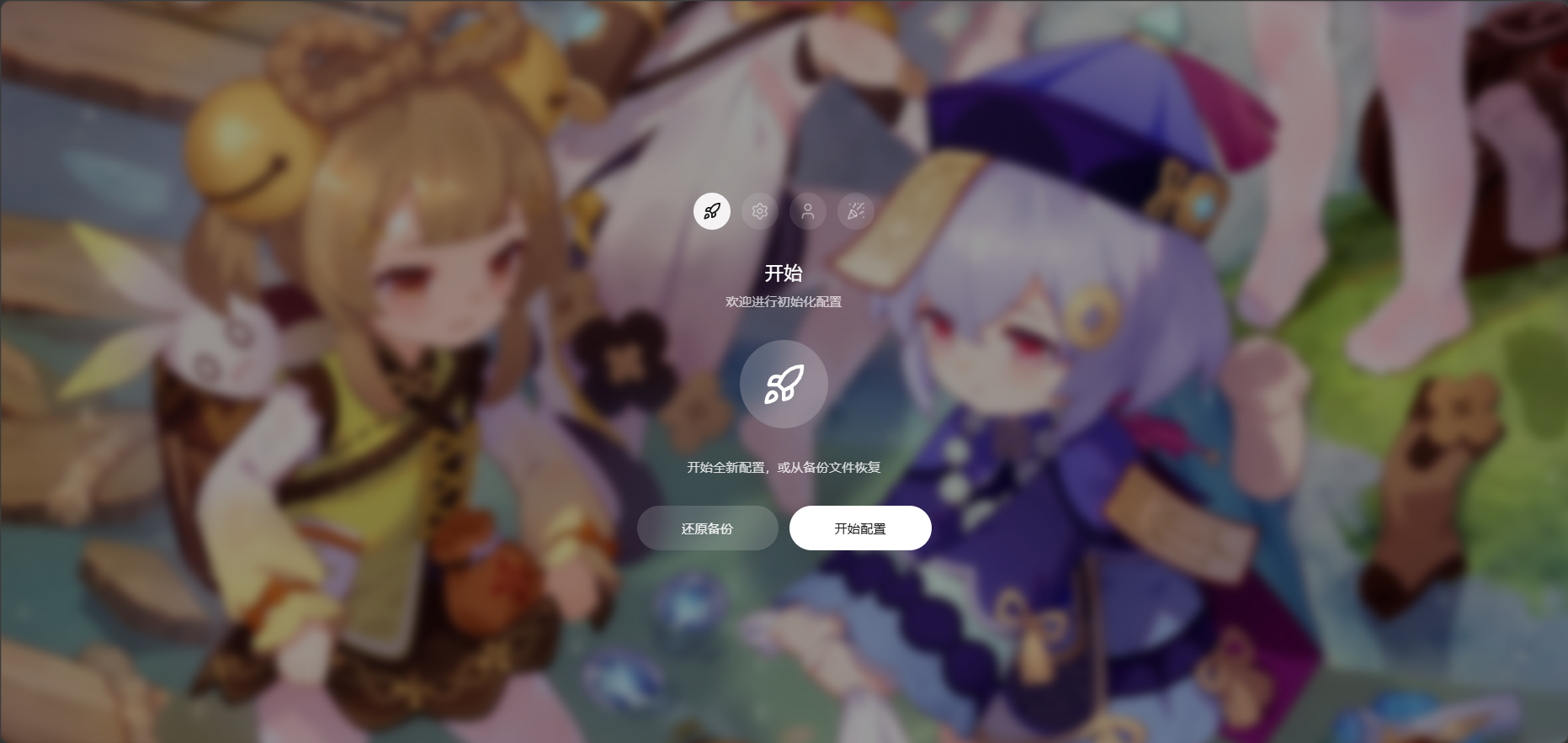
像这样后端就搭建完成了,根据文字一直点击下一步即可
安装前端

进入到你服务器的ssh

先进入文件夹

1
cd /root/mx-space

创建文件夹

1
mkdir shiro

再运行以下两个指令wget文件(记得cd进去)

shiro进入维护状态了,官方md文档中的两个wget都有问题所以我这里贴我自己的链接

1
wget -O docker-compose.yml  https://dl.xp6.top/down.php/da6c8f95728461dd73a8cb1aa6b27fb3.yml
1
wget -O .env  https://dl.xp6.top/down.php/f661b65565f853bd2e0cdfc8577c8350.env

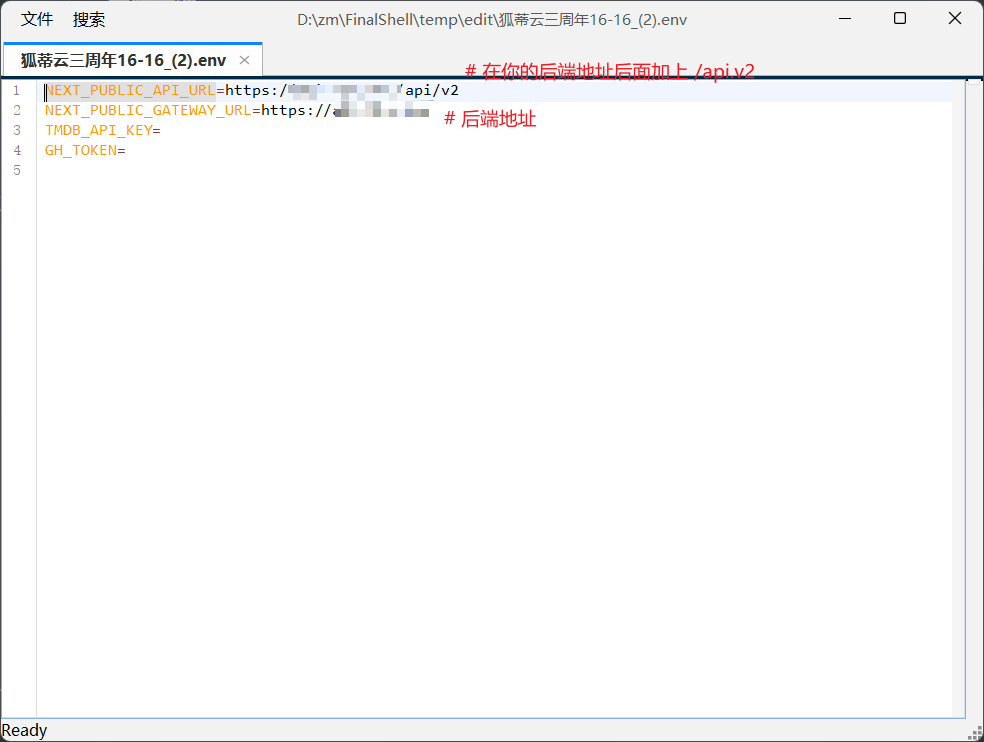
随后修改.env文件,多余的两行删掉即可

最后

1
sudo docker compose pull
1
docker compose up -d

启动前端即可

接下来去配置前端的反代,和上面的一样把端口改成2444就好了

配置文件改成这个

1
2
3
4
5
6
7
8
9
10
11
12
13
14
15
16
17
18
location ~* \.(gif|png|jpg|css|js|woff|woff2)$ {
proxy_pass http://127.0.0.1:2323;
proxy_set_header Host $host;
proxy_set_header X-Real-IP $remote_addr;
proxy_set_header X-Forwarded-For $proxy_add_x_forwarded_for;
proxy_set_header REMOTE-HOST $remote_addr;
expires 30d;
}
location / {
proxy_pass http://127.0.0.1:2323;
proxy_set_header Host $host;
proxy_set_header X-Real-IP $remote_addr;
proxy_set_header X-Forwarded-For $proxy_add_x_forwarded_for;
proxy_set_header REMOTE-HOST $remote_addr;
add_header X-Cache $upstream_cache_status;
add_header Cache-Control no-cache;
proxy_intercept_errors on;
}

最后再去修改后端里的云函数

在后台配置云函数

进入 Mix Space 后台,进入「配置与云函数」页面,点击右上角的新增按钮,在编辑页面中,填入以下设置:

请注意,这份配置你需要自行修改成符合你的需求的配置。直接使用下面的配置可能会导致你的博客无法按照你的预期运行。

下面的配置可能不全,更多配置项的信息请移步配置项了解。

此外,配置也可写成 YAML 格式,此时数据类型应选择 YAML

  • 名称:shiro
  • 引用:theme
  • 数据类型:JSON
  • 数据:(点击下方的按钮复制)
1
2
3
4
5
6
7
8
9
10
11
12
13
14
15
16
17
18
19
20
21
22
23
24
25
26
27
28
29
30
31
32
33
34
35
36
37
38
39
40
41
42
43
44
45
46
47
48
49
50
51
52
53
54
55
56
57
58
59
60
61
62
63
64
65
66
67
68
69
70
71
72
73
74
75
76
77
78
79
80
81
82
83
84
85
86
87
88
89
90
91
92
93
94
95
96
97
98
99
100
101
102
103
104
105
106
107
108
109
110
111
112
113
114
115
116
117
118
119
120
121
122
123
124
125
126
127
128
129
130
131
132
133
134
135
136
137
138
139
140
141
142
143
144
145
146
147
148
149
150
151
152
153
154
155
156
157
158
159
160
161
162
163
164
165
{
"footer": {
"otherInfo": {
"date": "2020-{{now}}",
"icp": {
"text": "萌 ICP 备 20236136 号",
"link": "https://icp.gov.moe/?keyword=20236136"
}
},
"linkSections": [
{
"name": "关于",
"links": [
{
"name": "关于本站",
"href": "/about-site"
},
{
"name": "关于我",
"href": "/about"
},
{
"name": "关于此项目",
"href": "https://github.com/innei/Shiro",
"external": true
}
]
},
{
"name": "更多",
"links": [
{
"name": "时间线",
"href": "/timeline"
},
{
"name": "友链",
"href": "/friends"
},
{
"name": "监控",
"href": "https://status.innei.in/status/main",
"external": true
}
]
},
{
"name": "联系",
"links": [
{
"name": "写留言",
"href": "/message"
},
{
"name": "发邮件",
"href": "mailto:i@innei.ren",
"external": true
},
{
"name": "GitHub",
"href": "https://github.com/innei",
"external": true
}
]
}
]
},
"config": {
"color": {
"light": [
"#33A6B8",
"#FF6666",
"#26A69A",
"#fb7287",
"#69a6cc",
"#F11A7B",
"#78C1F3",
"#FF6666",
"#7ACDF6"
],
"dark": [
"#F596AA",
"#A0A7D4",
"#ff7b7b",
"#99D8CF",
"#838BC6",
"#FFE5AD",
"#9BE8D8",
"#A1CCD1",
"#EAAEBA"
]
},

"bg": [
"https://github.com/Innei/static/blob/master/images/F0q8mwwaIAEtird.jpeg?raw=true",
"https://github.com/Innei/static/blob/master/images/IMG_2111.jpeg.webp.jpg?raw=true"
],
"custom": {
"css": [],
"styles": [],
"js": [],
"scripts": []
},
"site": {
"favicon": "/innei.svg",
"faviconDark": "/innei-dark.svg"
},
"hero": {
"title": {
"template": [
{
"type": "h1",
"text": "Hi, I'm ",
"class": "font-light text-4xl"
},
{
"type": "h1",
"text": "Innei",
"class": "font-medium mx-2 text-4xl"
},
{
"type": "h1",
"text": "👋。",
"class": "font-light text-4xl"
},
{
"type": "br"
},
{
"type": "h1",
"text": "A NodeJS Full Stack ",
"class": "font-light text-4xl"
},
{
"type": "code",
"text": "<Developer />",
"class": "font-medium mx-2 text-3xl rounded p-1 bg-gray-200 dark:bg-gray-800/0 hover:dark:bg-gray-800/100 bg-opacity-0 hover:bg-opacity-100 transition-background duration-200"
},
{
"type": "span",
"class": "inline-block w-[1px] h-8 -bottom-2 relative bg-gray-800/80 dark:bg-gray-200/80 opacity-0 group-hover:opacity-100 transition-opacity duration-200 group-hover:animation-blink"
}
]
},
"description": "An independent developer coding with love."
},
"module": {
"activity": {
"enable": true,
"endpoint": "/fn/ps/update"
},
"donate": {
"enable": true,
"link": "https://afdian.net/@Innei",
"qrcode": [
"https://cdn.jsdelivr.net/gh/Innei/img-bed@master/20191211132347.png",
"https://cdn.innei.ren/bed/2023/0424213144.png"
]
},
"bilibili": {
"liveId": 1434499
}
}
}
}

然后点击右上角的保存

现在你就可以访问你的前端了

可能你跟着教程走都会遇到些许问题玄学真的好多!!

前期的环境配置借鉴了了些龙司的小窝里的内容

  • Titre: mix space 前端+后端教程-4.19
  • Auteur: ZXEB
  • Créé à : 2026-04-19 02:17:03
  • Mis à jour à : 2026-04-19 02:50:33
  • Lien: https://zxeb.github.io//posts/云服务器/91
  • Licence: Cette œuvre est sous licence CC BY-NC-SA 4.0.
Commentaires